Most of your Shopify customers already shop on mobile, through your mobile website. You’ve put a lot of work into your mobile site, and it’s responsive, relatively fast, and has a decent user experience.
But it’s not an app. And it never will be.
A mobile app is just a more powerful channel than your mobile website. It’s one of the best retention channels an ecommerce brand can have, delivering a better user experience and a closer connection with your best customers than any website can.
The good news: you can turn your Shopify store into a mobile app and get this new channel without having to hire developers or learn how to code.
In this guide, we’ll walk you through how to do that, along with why your brand needs an app, and how to get traction for your app once it’s live.
Why Should Your Shopify Store Have an App?
A mobile app gives your returning customers a faster way to buy, and gives you a direct way to reach them.
Mobile is already where most shopping happens. During the 2025 US holiday season, smartphones accounted for 56.4% of online transactions, according to Adobe.
That number is only going to rise. For Shopify brands, it’s not if you should launch an app, it’s when.
Here’s why.
An App Puts Your Brand on the Home Screen
Once your customer installs your app, your icon sits next to the apps they open every day. Coming back to your store takes one tap, with no search or ad click in between.
Reach Your Customers Through Push Notifications
You can tell your customers who opt in about new arrivals or send a back-in-stock alert that opens the product in your app.
Those messages can appear on the lock screen, giving your customers a route back to your store without you buying another ad impression.
Make Repeat Purchases Easier
Persistent login and access to order history help your returning customers pick up where they left off. If your customer is replenishing a favorite product, they can open your app and find it without starting a fresh search.
What Does Turning Your Store Into an App Mean?
If you’re running a successful Shopify store, you have a solid mobile user experience already.
Turning your Shopify store into an app means building on what you’ve already got, and expanding it into a new, mobile-native channel.
Your mobile app doesn’t need to be a whole new store to manage. It doesn’t need to be a completely redesigned and reimagined storefront.
A lot of what powers your site should carry over the sync with your app: your catalog, collections, pricing, checkout, customer accounts, design and the Shopify apps you’ve added for reviews, loyalty, subscriptions and search.
Your app adds a native layer on top:
- Native navigation, such as a tab bar at the bottom of the screen
- Persistent login, so returning customers don’t have to sign in on every visit
- Push notifications, so you can reach customers who opt in on their lock screen
- Deep links, so a tap on a notification, email or ad opens the right product inside the app
- App-only content, such as early access to a drop or an app-exclusive discount
You keep running everything from Shopify, so there’s no second catalog to manage. And the app can still offer things your website doesn’t.
How Do You Build a Shopify Mobile App?
Here’s the part that most brands struggle with. How do you build an app in the first place? Do you need to hire developers, or learn how to code?
Thankfully – no. You can, if you have the budget or the expertise, develop a custom mobile app for your store. But there are easier, and more cost-effective ways to do it.
Shopify mobile app builders give you a straightforward way to build your mobile app. You don’t need to code, you don’t need to spend tens or hundreds of thousands on the project, and you can go live usually within a month or less, with a real native app.
There are many viable tools out there for this. The gap between many of them isn’t huge; though there is a major difference between two types of mobile app builders that work with Shopify stores, which is worth knowing about.
DIY No-Code App Builders
A DIY app builder is a Shopify app you install from the Shopify App Store, that connects to your store through Shopify’s APIs and pulls your store info into a pre-built and customizable template.
You design your app in the builder’s editor, choosing from its templates and blocks for the home screen, product pages, collection pages and menus.
On the backend, it pulls your products, collections, accounts and other important data into your app, and syncs in between your store and app via Shopify’s storefront API.
These are relatively quick and convenient ways to launch an app, with layouts and templates already set up and designed for you.
They do take some work to maintain, though, as you’re building a separate front end for your app, which needs to be managed separately from your site. Additionally, keeping your two channels consistent can be difficult, as these app builders don’t always support all the same features and functionality as your website.
Custom Mobile App Builders
With a custom app builder, you get a custom native app, integrated with and powered by your existing Shopify store.
This is a newer evolution of the Shopify app builder. The idea isn’t to just pull your store data into a template, but to extend your entire web experience into a custom experience for the app.
MobiLoud is one of the best examples of a custom mobile app builder for Shopify. It delivers a native facelift for your store; a “reimagining” of the storefront, made into a true native app, yet powered by the same code, content, design fundamentals, Shopify apps and third-party tools that run on your site.
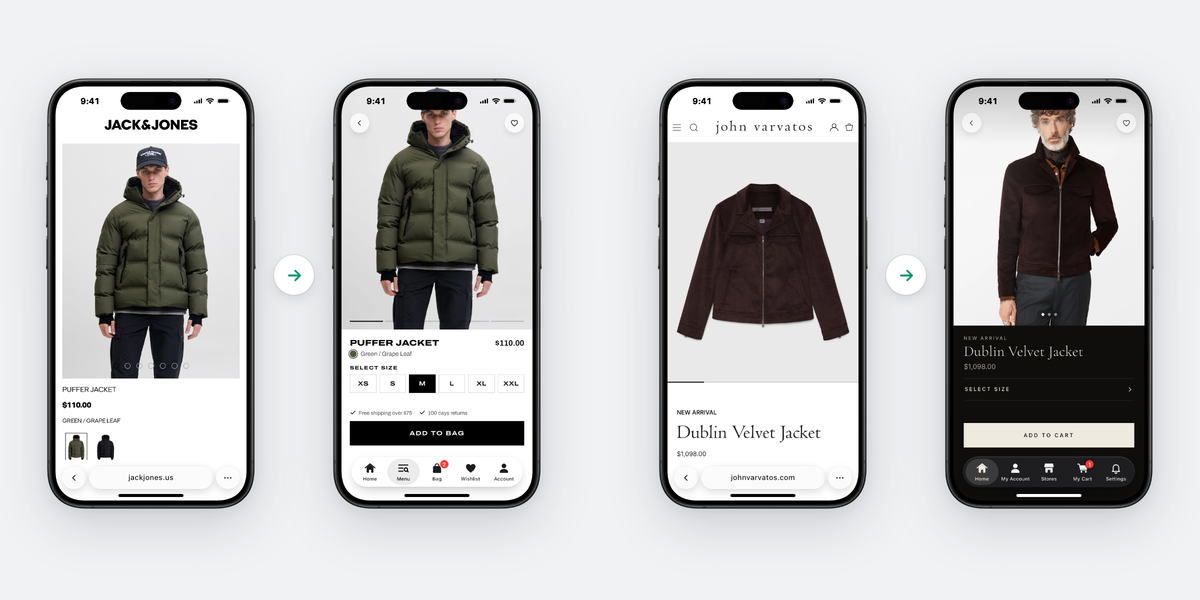
These app builders can be a little more expensive upfront than a DIY app builder. But the payoff is a much more custom experience, and one that’s easier to manage, since it’s powered by the same underlying codebase as your site.
Step-by-Step: How to Turn Your Shopify Store Into an App
Turning your Shopify store into a mobile app doesn’t take as much work as it used to. A lot of it comes down to choosing the right provider to work with. From there, they’ll likely handle a lot of the work for you, and for you it just comes down to making sure the output fits your vision for the app.
Here’s a walkthrough of everything that goes into getting your mobile app live.
1. Choose Your Builder
Step one is to choose the Shopify mobile app builder to use to build your app.
Decide between a DIY builder and a custom app builder. The benefits of each are laid out above.
In general, DIY app builders tend to be cheaper and simpler up front, but more work and more limiting in the long run. A custom mobile app builder is a better fit for a brand with a more custom website, higher traffic, and specific features or integrations you want carried over to your mobile app.
2. Set Up Your Apple and Google Developer Accounts
Your app is published under developer accounts with Apple and Google. Keep these accounts under your control, even if a provider handles publishing, so your business controls its listings and access.
- Apple Developer Program membership costs US$99 per year, with regional pricing variations.
- Google Play Console has a one-time US$25 registration fee. Google recommends an organization account for business use, so choose that account type when publishing for your company.
Start enrollment early and allow time for business verification, especially if you need a D-U-N-S Number.
Each account must be ready before you can submit to its store; the two approvals don’t have to happen together.
3. Connect Your Store
With a DIY builder, install it from the Shopify App Store and authorize it to access your store. With a custom app builder, you’ll work more closely with the app vendor: you give the provider access to your store and agree on what your app should do, and what it should look like.
4. Configure Your App
Configure your app around how your customers shop, and check each part before testing:
- Set your app name, icon, splash screen and colors to match your brand.
- Choose the tabs and menus your customers use to move around your app.
- Review your home screen, collection and product pages to decide what your customers see first and how they browse.
- Confirm that login, discount codes, gift cards and payment methods all work.
- Connect your messaging platform for push notifications and configure supported campaigns or automations, such as back-in-stock alerts.
- Make sure your analytics track app sessions and orders so you can compare your app with your mobile website.
With a DIY builder you do this in the editor. With a custom app builder, the provider’s team does most of it and you review and approve.
5. Test on Real Devices
Install your test build on at least one iPhone and one Android device and shop the way your customers do.
Search for a product, add it to the cart and apply a discount code. Check out as a guest and as a logged-in customer, and confirm your orders arrive in Shopify.
Tap a test push notification and check that it opens the right screen. Compare your app against your website and fix any gaps, such as a missing loyalty widget or a review app that doesn’t display.
6. Submit to the App Store and Google Play
Prepare your store listings: your app name, description, screenshots, a privacy policy and the data disclosures each store asks for.
Apple and Google each review your app before it goes live. Apple says it typically reviews 90% of submissions in less than 48 hours.
Google doesn’t give a typical review time, but says some apps may face extended reviews of up to 7 days or longer. Allow extra time if your app is rejected and needs changes.
As a guide to your overall timeline, you can have a DIY build ready to submit in days to a couple of weeks. With a custom app built from your live store, you can typically expect a few weeks from kickoff to launch.
7. Launch and Promote Your App
After approval, release your app in each store and check that the public listings and download links work. Coordinate the release date with your customer announcement.
How Do You Get Customers to Install Your App?
Once you’re live, the job’s not quite finished. You still need to promote your app and start getting users.
The best way to get your first installs is to tell the customers who already buy from you, in the places where they already interact with your store:
- Announce your app by email and SMS. Tell your list it is live and highlight a benefit you’ve included, such as early access to new products. Include both store links.
- Add a smart app banner at the top of your mobile site. It reaches your customers while they shop on mobile and sends them straight to the right store listing.
- Add a download link to your order confirmation emails and, where your Shopify setup allows, confirmation and account pages. These reach your customers after they’ve bought from you.
- Give your customers a reason to install with a small app-only offer, such as a discount on their first app order or early access to a new collection.
Keep your banner and post-purchase prompts in place after launch week, and keep running app-only offers so your customers have a reason to keep your app on their home screen.
Final Thoughts
A mobile app gives your returning customers a faster way to buy. It gives your brand a direct line to them, a way to get in front of your best buyers, without the barrier of an algorithm or an ad auction.
If you’re focused on getting more sustainable repeat revenue for your store, you need a mobile app. And if you’re on Shopify, it’s never been easier to get one.
Follow the steps above and you can turn your Shopify store into a real, native mobile app, without the cost and complexity of a fully custom dev project.
There’s no excuse now not to have your own mobile app.